Infographic: Tips for detecting a phishing email

Phishing emails are getting more complex all the time.  As the stakes rise, cyber criminals are employing increasingly subtle techniques and messaging.  Gone are the days when you simply had to turn down preposterous offers from royalty who had miraculously decided to become your unlikely benefactor.

The phishing email of today is designed to look as legitimate as possible.  It will try to distract you from clues that give away its true intent by creating a sense of urgency.  Typically they front as legitimate emails from familiar sources, sometimes even appearing to come from within your own organization.

Fortunately, once you know what to look for, these emails will be as easy to spot as those starting “I am a prince from [insert  random country name here], and I wish to bathe you in riches…”

When and How to Stop Google Chrome From Running in the Background

By default, when you close Google Chrome, the browser window closes, but the application itself continues to run in the background. There are a few reasons for this.

First and foremost, this makes it faster to open a new browser window. Since Chrome is already running in the background, there is less that has to take place behind the scenes before your new browser window appears.  This makes the browser feel quick, even on slower machines.

Running in the background also allows any Chrome extensions you might have installed to continue to operate. These are applications that run within Chrome and either enhance the browser’s existing features, or add new ones. Extensions range from those that change Chrome’s background colors to those that add support for third party applications.

This behavior, however, might not always be desirable.

If you are running an older or less powerful computer, you might find that forcing Google Chrome to stop running in the background could noticeably improve the overall performance of your computer.

Similarly, if you are using a laptop, having Google Chrome running in the background could negatively impact your battery life.  By forcing Chrome to close completely, you might find you can stretch your battery life just a little further.

If you fall into one of these two categories, or would simply prefer to avoid having Chrome run in the background, you can follow the instructions below to disable this behavior.

In Google Chrome:

1. Select “Settings” in the Chrome Menu

2. Click on “Advanced” at the bottom of the settings page that appears.

3. Under the “System” heading, find the box next to “Continue running background apps when Google Chrome is closed.”

By default, the toggle button next to that text will be set to the right with a blue background.  To prevent Chrome from running in the background, simply click the button so that the toggle is to the left, with a gray background (see screenshot above).

If, in the future, you decide you would like to allow Chrome to run in the background once again, simply repeat the steps above and move the toggle back to the right.

When To Replace a Server

Every IT professional would agree that servers are the lifeblood of your organization. No matter what daily task you perform, whether it is responding to email, preparing for a presentation, or completing other workday tasks, it’s important to have a server in your office that runs smoothly. No organization, no matter what the size, wants to face the IT issues associated with a slow or non-responsive server. While there is no way to accurately predict when a server will need to be replaced, there are some general guidelines you should observe to ensure that this critical piece of equipment is running properly.

Keep Your Electronic Devices Protected – Power Strips vs. Surge Protectors

With all the electronic devices that are used in homes and offices in today’s high tech world, oftentimes there just aren’t enough electrical outlets to plug them all into. Power strips offer a solution which enables a single outlet to handle multiple devices. But if you don’t choose one that also offers surge protection, you could be putting your devices at risk.

Best Practices to Keep Computers From Overheating

The cooling system of a computer (the fan, heat sinks, vents, etc.) forms one of the most essential components of your device. “Simply put, if your computer becomes too hot, it is possible to destroy and shorten the lifespan of the hardware inside your computer, leading to irreparable damage and potential data loss. Besides losing your data, heat pecks away at your computer’s internal organs—the motherboard, CPU, and more—significantly shortening its lifespan.  Besides the most obvious reason to keep your computer cool, a hot computer will also run slower than a cooler computer. So to prevent your computer from slowing down, make sure that it is running at a moderate or low temperature.”1

Air Flow.  Leave at least three inches of room for airflow around each computer, particularly along the back.  Keep things such as papers, files, or other heating elements away from your computer.  Computer stands are handy to allow for proper airflow.  If you work with a laptop, avoid soft surfaces.  The rubber feet on a laptop will provide room for air to flow under the computer.  Also remember never to leave your laptop turned on before placing it in your bag or briefcase. This would cause the heat to accumulate in one place and thus cause the laptop to overheat.

Dust and Debris.  If dust and debris clog up the air vents, it stops the proper air flow.  When dust and lint build up over the fan, it causes it to work harder.  A layer of dust covering other heat generating parts such as the RAM and Hard Disk can also cause overheating.  In a dusty environment, clean the inside of a computer periodically, particularly the internal fans.  Also, where possible, do not place the computer on a carpeted surface; the carpet fibers are ingested into the computer, building up on the interior surfaces. If you decide to personally clean your computer make sure the system is off and the power cable is unplugged.  To avoid damaging the sensitive electronics, do not touch internal components.

Fans.  The CPU, graphics cards and other computer components generate a great deal of heat. To combat that heat, computers come with internal fans to circulate air.  Keeping those fans in good working order is critical to a well-running system.  Clean the inside of office computers every 8-12 months, particularly the internal fans. All it takes is a can of compressed air and a small brush. Check to ensure that fans are operating. You can do this by turning on the computer with the case open. There should be two or three fans inside the box.  If increased cooling is necessary, consider adding a case fan, attached inside the computer to the front or back of the case. Several manufacturers also make specialized fans for individual components, such as high speed computer memory.  In many cases, computers come installed with very basic CPU fans. Upgrading to a more efficient fan can increase cooling power.

Temperature.  Computers prefer a room temperature of no more than 77 degrees Fahrenheit, with humidity between 35% and 80%.  Resist the temptation to turn off the office air conditioning over the weekend to try and save money. For added protection, install a smart thermostat that will alert you if the temperature moves higher than the desired range. Catching an air conditioning problem early can save costly electronics repairs.

Battery.  If you want to keep your computer safe from overheating, never overcharge the battery. Most people plug in the chargers of their laptops and keep them connected even when the battery is charged to a 100%.  Never do so. Not only does it cause overheating but according to some computer experts, it also reduces the battery life.

PC Settings.   “Tweaking the power settings of your computer is also an effective solution to overheating. Less power consumption leads to less heat generation.”2

  • Try to avoid setting the brightness to maximum.

Some additional best practices would include managing power and data:

  • Shut down workstations at the end of the day. This not only cools the system but also protects against power surges caused by storms. (Note: patching often occurs after-hours; leave your computer powered-on overnight when patching is scheduled)
  • You can also adjust your power settings and screensaver to switch the system to ‘Sleep’ or ‘Hibernate’ mode when not in use.
  • For critical workstations (including servers and other key devices) attach an uninterruptible power supply (UPS). This will protect them against surges and power outages.  For less critical devices, a surge protector should be sufficient.

By utilizing these tips you should have a longer lifespan of your computer.  The time spent taking proper care of your equipment should save time and money in the long run.

References:
1 + 2 fosbytes.com
Lifewire.com
makeuseof.com
howtogeek.com
techrepublic.com
“Overclocking For Newbies” – pcworld.com

Wi-Fi is not Wireless Fidelity

Garin Livingstone and Gavin Livingstone, Bryley Systems Inc.

Wi-Fi is not an abbreviation for wireless fidelity1; it is a trademarked phrase that refers to wireless communication between electronic devices and a Wireless Local Area Network (WLAN) based on the IEEE 802.11x standards.

Wi-Fi is brought to us by the Wi-Fi Alliance®, a worldwide network of companies with the mission to drive the adoption and evolution of Wi-Fi globally.  The Wi-Fi Alliance tests and certifies that WLAN equipment meets its stated standards.

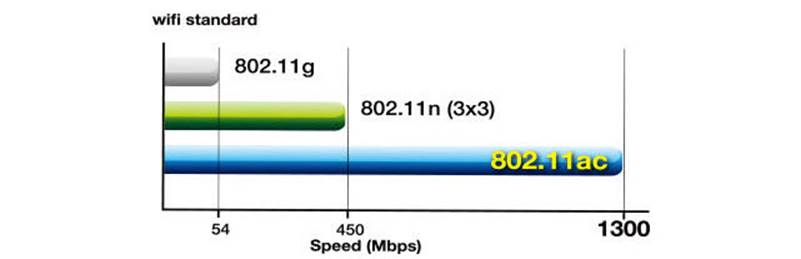
Current standards include:

  • 11g
  • 11n
  • 11ag

Speeds have grown substantially, now rocketing up to a potential 1,300Mbps using the latest WiGig™, 802.11ac, standard (although actual performance is typically significantly less than its potential).

wifi-standard

At their core; wireless networks are less secure than wired networks (since a potential intruders does not need a physical connection), although encryption technologies (Wi-Fi Protected Access or WPA and WPA2) exist to secure WLANs.

Large-scale Wi-Fi implementations include:

  • City-wide Wi-Fi – Free Wi-Fi provided in St. Cloud, FL, Sunnyvale, CA, etc.
  • Campus-wide Wi-Fi – Wi-Fi throughout a campus environment

1See ‘Wireless Fidelity’ Debunked by Naomi Graychase of WiFi Planet.

2See Wikipedia IEEE 802.11.

Recommended Practices: Basic training for IT end users

This is a multi-part series on recommended IT practices for organizations and their end-users.  Additional parts will be included in upcoming newsletters.

End users receive the benefits of IT, but usually with some pain involved, which they are glad to share with the IT administrators and technicians.  Oftentimes, the pain comes from not knowing the correct way to do something or from enabling malware; these can be avoided (or at least reduced) through proper training.

Training is usually considered optional, but the increased emphasis on security and compliance, along with the potential gains from trained users that are comfortable and knowledgeable with their IT assets and systems, can provide significant return on investment.

Training can play a critical role in the satisfaction of end users and in the security of the computer network.  It can provide end users with the knowledge to safely browse the Internet, reject harmful emails, and avoid trouble.  It is also important to define appropriate-use policies and demonstrate how to enter timely data into information systems.

Training topics

Generally, IT-oriented training occurs in these areas:

  • End-user equipment
  • Network resources
  • Applications
  • Policy
  • Security

End-user equipment

End-users have a myriad of devices, ranging from desktop PCs to terminals, tablets and other mobile devices; some have specialized items like hand-held scanners or terminals tied to a specific application.

The fundamentals are important:

  • Simple maintenance (cooling, ventilation, etc.)
  • How to operate the user interface (touch display, special keyboard, etc.)
  • Basic usage at the operating-system (Windows, Android, iOS) level

Ergonomics should also be considered; ensure that the equipment is optimized to the user’s body in the placement of displays, keyboards, mouse, etc. and that ergonomically correct accessories (gel-based wrist pads, comfortable seating, etc.) are provided and aligned properly.  (See Ergonomics Made Simple from the May 2014 edition of Bryley Tips and Information.)

Network resources

Resources available to end-users should be identified and demonstrated:

  • Printer features (b&w/color options, duplexing, etc.), location, and use
  • Multi-Function Printer (MFP) functions (faxing, copying, scanning) and use
  • Server names, basic purpose, shared folders, and access privileges
  • Conference-room display and wireless keyboard/mouse
  • Login credentials to Wireless Access Points (WAPs)

Labeling these resources makes them easier for end-users to identify.

Applications

Software applications fit a variety of functions, including:

  • Productivity suites:
    • Microsoft Office
    • Google Apps
  • Organization-wide:
    • Customer Relationship Management ((CRM)
    • Professional Services Administration (PSA)
    • Enterprise Resource Planning (ERP)
  • Utilities:
    • PDF readers and writers
    • Password managers
    • File compression
    • Storage
    • Backup
  • Prevention:
    • Email protection
    • End-point security
    • Web filtering

(Software applications are discussed in the September 2013 through January 2014 editions of Bryley Tips and Information.)

Policy

Usage policies focus on the organization’s permissiveness (and lack thereof); they are designed to specify proper use and discourage improper behavior.

Most organizations have at least these IT-related policies:

  • Authorized use of computer network and its resources
  • Internet, email, and social media use and etiquette
  • Information Security Policy

Security

Security relies heavily on policies, training, and protective applications; the human element is the largest security risk in any organization.  Policies and training should encourage end-user behavior that minimizes security risks; protective applications help to enforce policies and to detect and remove problems when they occur.

Security training should include, at a minimum:

  • Anti-virus/anti-malware protection
  • Preventing phishing attacks
  • Password guidance
  • Safe web browsing

Many organizations will provide continuous training and reminders; some setup internal honeypots designed to lure end users into inappropriate behavior so that this behavior can be addressed and corrected.

Training process and related factors

The training process:

  • Set training goals
  • Assess end-user needs
  • Tailor the delivery methods
  • Create the training program
  • Scale the program to the audience

Trainers should factor in these items:

  • Budget training at the beginning of the project
  • Consider the needs and learning styles of the end-users
  • Marry the business context of the need to the IT training

References

  • Sunview Software, Inc. reveals Deb Shinder’ her article: “Plan Your End-User Training Strategy Before Software Roll-Out”
  • Beth Stackpole of ComputerWorld makes her case in the March 13, 2008 article in CIO: “Five Mistakes IT Groups Make when Training End-Users”
  • Toni Bowers emphasizes the end user in the June 5, 2013 TechRepublic article: “You Know What’s Important About End-User Training? The End User”